Choosing the right writing pad for a Chromebook can boost note-taking, drawing, and on-screen collaboration. This guide highlights five versatile options that pair well with ChromeOS devices, covering battery-free styluses, e-signature features, and handy LCD writing tablets. Each entry includes key features, practical uses, and how it fits into classroom, home, or remote-work setups.
| Product | Brand | Key Benefit |
|---|---|---|
| HUION Note 2-in-1 Digital Notebook | HUION | Paper-like experience with digital copies |
| HavaPen Signature Pad | Havapen | Battery-free stylus for signing and teaching |
| OSU Drawing Pad 6×4 | Havapen | Chromebook-ready drawing and notes |
| Wacom One Bluetooth | Wacom | Entry-level, compact with software options |
| Mafiti LCD Writing Tablet 8.5 Inch | mafiti | Budget-friendly digital doodling and memos |
HUION Note 2-in-1 Digital Notebook

The HUION Note combines a traditional A5 notebook with a digital pen and an app-based workflow. It provides digital copies of handwritten notes while preserving the tactile feel of pen on paper. The free Huion Note app captures handwriting as vector lines and synchronizes content to your device, so you can access your notes from a Chromebook via compatible mobile platforms. An audio recording feature lets you replay your writing process, reducing the chance of missing details during meetings or lectures. This setup is particularly useful for students and professionals who want a hybrid physical-digital notebook experience on ChromeOS devices.
HavaPen Signature Pad
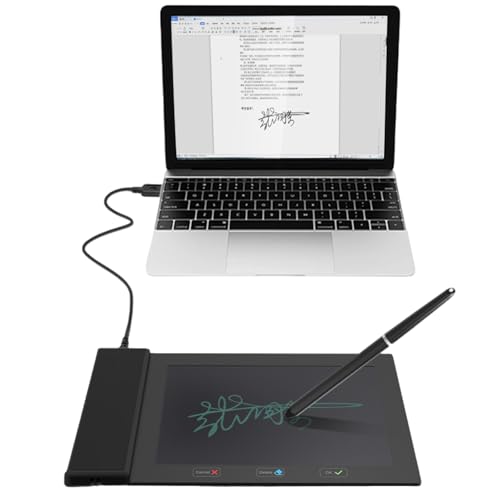
The HavaPen signature pad provides a battery-free stylus for precise signatures and handwritten notes on a Chromebook setup. The device doubles as a signature capture tool and a drawing surface, making it suitable for remote teaching, meetings, or sign-off workflows. With compatibility across major productivity suites like Microsoft Office and video conferencing tools, it enables a natural handwriting experience without the need to charge a pen. This can be especially advantageous in environments where a traditional mouse is less efficient for digital signatures and quick note capture.
Havapen OSU 6×4 Drawing Pad

This drawing tablet from Havapen emphasizes a battery-free stylus and seamless Chromebook compatibility. It supports digital drawing, online education, and remote collaboration, with a focus on smooth line work and reliable pressure sensitivity. The device is well-suited for students and professionals who want to sketch diagrams, take handwritten notes, and annotate documents while using a Chromebook. It integrates with common cloud-based tools and supports quick transfer of sketches to digital formats for sharing in class or team projects.
Wacom One Bluetooth

The Wacom One Bluetooth is an entry-level, compact drawing tablet designed for Chromebooks, Macs, Windows PCs, and Android devices. With a 6.0″ x 3.7″ active area and natural pen-on-paper feel, it’s ideal for beginners and casual creators who want to sketch, edit photos, or annotate documents. The pen supports tilt and 4096 levels of pressure sensitivity, with customizable shortcut buttons that can speed up common tasks. For Chromebook users, the integration is straightforward, offering a reliable, low-latency drawing experience without bulky hardware.
Mafiti LCD Writing Tablet 8.5 Inch
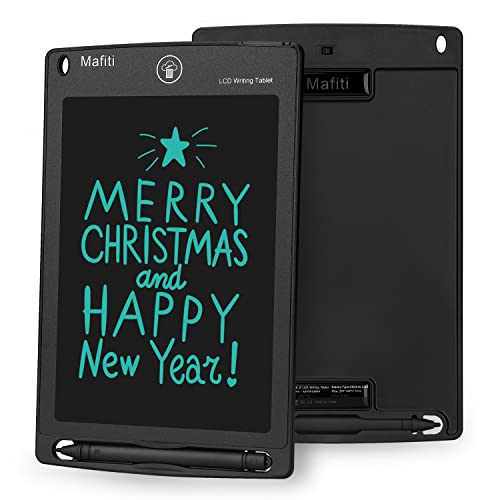
The Mafiti LCD writing tablet offers a compact and affordable option for quick notes and doodles on a Chromebook-friendly device. It uses an LCD screen with a plastic stylus, allowing for erasable handwriting with a one-key clear function. A replaceable coin-cell battery ensures long life, and a kick-stand function helps display messages or notes during study sessions or meetings. While not as feature-rich as some dedicated drawing tablets, it provides a no-fuss option for jotting down ideas, signing quick memos, or teaching backup notes in class or remote settings.
10 Inch LCD Writing Tablet With Case

This 10-inch LCD writing tablet combines a sturdy PU protective cover with a foldable stand, making it a portable solution for Chromebook users who want a larger surface for notes, diagrams, or presentations. The display uses pressure-sensitive LCD technology, offering bright lines with low eye strain. It features two clearing methods—button-based and pen-guided—so users can choose their preferred workflow. It’s suitable for students, teachers, and remote workers who need a reliable, paperless notepad on the go.
YOLIPULI 6.5 Inch LCD Writing Tablet

The YOLIPULI mini 6.5-inch LCD writing tablet emphasizes portability and eye-friendly display. It uses pressure-sensitive technology to deliver clear blue-green handwriting with no backlight glare, making it easy to view in different lighting conditions. It offers simple erasing and a stylus that writes without fingerprints, which helps keep Chromebook workspaces tidy. This compact option is ideal for quick notes during lessons, brainstorming sessions, or jotting down ideas while commuting.
Buying Guide: Key Purchase Considerations For Chromebook Users
- Compatibility and workflow: Look for tablets and pads that integrate smoothly with ChromeOS apps and cloud storage. Devices that offer export options (PDF, PNG, or vector formats) simplify sharing notes in class or with teammates.
- Pen technology: Battery-free styles reduce maintenance and are favored for frequent note-takers. Consider pressure sensitivity and tilt support for more natural drawing and handwriting.
- Workspace and portability: For students and remote workers, balance screen size with portability. Portable 6–8 inch devices are easy to carry, while larger pads suit extended drawing or diagramming sessions.
- Erasing and memory features: Some LCD tablets have quick clear functions; others use app-based saves. Choose a model that aligns with your need to erase quickly or preserve notes for later reference.
- Display comfort: LCD and e-paper styles vary in brightness and glare. For extended use, prioritize eye-friendly displays and low screen fatigue options.
- Price versus capability: Entry-level tablets offer basics like note-taking and sketches; higher-end models add signature capture, software bundles, and better pressure sensitivity. Define your budget and required features first.
- Use-case scenarios: If you need signatures, consider signature pads. If you want art and design, prioritize pressure sensitivity and tilt. For classroom use, focus on readability, shareability, and cross-platform compatibility.