When your desktop needs more USB ports or faster USB 3.0/3.2 speeds, a PCIe USB expansion card is a practical upgrade. This guide highlights five reliable USB-to-PCIe expansion cards that maximize transfer speeds and port variety. Each option supports varying numbers of USB A and USB C ports, with bandwidth up to 20 Gbps in some models. Read on to compare features, compatibility, and installation notes to choose the best fit for your system.
Summary of chosen products
| Product | Brand | Ports | Key Benefit | OS/Compatibility |
|---|---|---|---|---|
| ELUTENG PCIE USB 3.0 Card | ELUTENG | 7 USB 3.0 | Windows XP-Vista to Windows 11 | |
| YEELIYA USB PCIe Card (6 Ports) | YEELIYA | 4x USB A / 2x USB C | Windows XP-Vista to Windows 11; Linux | |
| Heayzoki PCIe to USB 3.2 Gen 2 Card | Heayzoki | 5 ports (3x A, 2x C) | Up to 20 Gbps total bandwidth | Windows/macOS/Linux |
| FANBLACK PCIe to USB 3.2 Gen 2 Card | FANBLACK | 7 ports (4x A, 3x C) | Higher port count with Gen 2 performance | Windows 7-11, Mac OS; Linux |
| Inateck PCI-e to USB 3.0 (4 Ports) | Inateck | 4 USB 3.0 | Reliable 4-port option with power connector | Windows XP-Vista to Windows 8/10 |
ELUTENG PCIE USB 3.0 Card 7 Ports

The ELUTENG PCIe USB 3.0 card adds seven USB 3.0 Type A ports to a desktop PC through a PCIe slot. A 2-phase independent power supply module ensures each output port has power, enabling devices to operate without external power in most cases. The card uses NEC 720201/720210 controllers and supports up to 5Gbps theoretical speeds, delivering faster access to large files like HD videos and backups. It is designed for Windows environments from XP through Windows 11, with dedicated channels that operate independently to minimize bandwidth contention.
Installation notes and considerations: This card is ideal when you need multiple USB 3.0 ports for peripherals such as external drives, printers, or hubs. It supports a 5V 2A per-port supply for compatible devices, and it emphasizes stable performance with low impedance and solid capacitors. Note that PS3/PS4 compatibility is limited; verify case clearance and PCIe slot availability before purchasing.
YEELIYA USB PCIe Card (6 Ports)

This card upgrades a PC with four USB Type-A ports and two USB Type-C ports, totaling six ports. It includes an external 19-pin header and a USB 20-pin Type E connector to extend to the front panel without the need for extra power. The kit comes with a standard 12 cm PC chassis bracket and a compact 8 cm bracket for small builds. Theoretical transfer speeds reach up to 5Gbps, which is ten times faster than USB 2.0, making it well-suited for file backups, media work, and data recovery tasks. Driver requirements vary by OS, with Windows XP/Vista/7/8/10 typically needing drivers, and Windows 10 often not requiring them.
Compatibility notes highlight PCIe 3.0/2.0 motherboards and support for Windows, Linux, and some Mac configurations. Real-world speeds depend on the connected USB devices and whether USB-C ports are used for Thunderbolt or other protocols. This card is a flexible option when you want both USB-A and USB-C access with minimal power concerns.
Heayzoki PCIe to USB 3.2 Gen 2 Card

The Heayzoki card provides five ports in total, combining USB-A and USB-C ports, with a total bandwidth of up to 20Gbps when using Gen 2 connections. The distribution of bandwidth across ports supports up to 10Gbps per port when used individually. It is compatible with Windows, macOS, and Linux, including various Windows versions and Linux distributions. The card supports PCIe 3.0/2.0 motherboards for PCIe x1, x4, x8, or x16 slots and aims to balance performance with broad OS compatibility. Driver installation requirements vary by OS, with Windows often not needing drivers in newer builds.
Users should note the note that this card does not support USB PD fast charging or video signal transfer through USB-C; it focuses on data transfer performance. If your use case involves USB peripherals like external drives or high-speed devices, this card provides strong performance with a streamlined setup.
FANBLACK PCIe To USB 3.2 Gen 2 Card

The FANBLACK card mirrors the 7-port Gen 2 design with four USB Type-A ports and three USB Type-C ports, delivering up to 20Gbps total bandwidth. Like other Gen 2 cards, individual ports can reach up to 10Gbps, depending on device assignment. It lists broad compatibility with Windows 7-11, Mac OS, and Linux, and notes driver requirements for certain Windows versions. The card emphasizes versatility for desktops needing multiple high-speed USB devices, such as VR peripherals, external SSDs, and peripherals requiring fast data transfer. It also emphasizes that USB-C Thunderbolt protocols and certain video-adapter features are not supported via USB-C.
Pros include high port count and Gen 2 performance, while cons may include driver nuances on older Windows versions. This card is a strong choice for users who require many USB-C and USB-A ports in one PCIe card without needing PCIe power adaptors beyond what the card provides.
Inateck PCI-e to USB 3.0 (4 Ports)
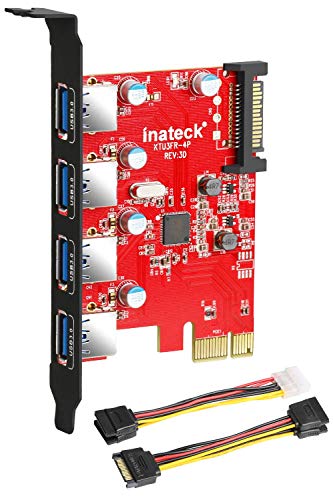
The Inateck card provides four USB 3.0 ports via a PCIe slot, plus a 15-pin SATA power connector to supply power to external USB devices. It is backward compatible with USB 2.0/1.1 devices and supports plug-and-play with Windows XP through Windows 8, plus Mac OS 10.8 or above. This option is ideal when you want a straightforward, compact expansion with dedicated power assurance for drives and high-demand peripherals. It’s a reliable, widely supported choice for older systems or users who prefer a simple upgrade path without numerous ports.
Buying Guide
- Port mix and type: Determine how many USB-A vs USB-C ports you need and whether you want front-panel expansion. Some cards include both, which is useful for front-panel access.
- Bandwidth and speed: Gen 2 cards can reach up to 20 Gbps total bandwidth with individual ports at 10 Gbps. If you regularly transfer large files, prioritize Gen 2 models with multiple ports that can operate at high speeds.
- Power delivery: Cards with independent per-port power or a dedicated 15-pin power connector provide better stability for power-hungry devices like external SSDs. Consider whether your devices require external power or can operate off PCIe power alone.
- Compatibility and drivers: Older Windows versions may require drivers, while newer Windows 10/11 builds often do not. Linux and macOS support varies by card; verify OS compatibility with your setup before purchasing.
- System compatibility: Check your motherboard’s PCIe slot type (x1, x4, x8, or x16) and ensure there is physical clearance inside the computer case for the card and any brackets.
- Future-proofing: If you anticipate expanding further, consider a card with more USB-C ports or a modular approach to adding hubs later on.
- Installation complexity: Some cards come with front-panel brackets or brackets for small form-factor cases. If you are building a compact PC, review bracket options.
When choosing, weigh the importance of port variety (A vs C), total bandwidth, and whether you require external power for high-demand devices. For multiple high-speed devices, Gen 2 options offer superior throughput, while simpler 4-port cards may suffice for keyboards, mice, and small peripherals. Always verify OS driver requirements for your specific setup to ensure plug-and-play functionality after installation.