Finding a reliable photo converter for Mac helps you transform, organize, and protect your image collection with ease. This guide highlights five top options, spanning image formats, photo scanning, and video-to-digital conversion. Each pick is evaluated for Mac compatibility, performance, and essential features like editing, watermarking, and batch processing. Use the buying guide to compare capabilities and choose the right tool for your workflow.
| Product | Brand | Key Benefit |
|---|---|---|
| Pixillion Image Converter | NCH Software | Format conversions with editing features |
| Plustek ePhoto Z300 | Plustek | Rapid photo scanning for 4×6 and larger |
| Canon imageFORMULA RS40 | Canon | High-volume scanning with an automatic feeder |
| Photo and Slide Scanner | DigitPro | 22MP standalone film/slide to JPEG |
| DIGITNOW! 135 Film Scanner | DIGITNOW | 35mm film and slides to digital |
Pixillion Image Converter Software for Mac

Pixillion Image Converter by NCH Software provides straightforward format conversion for Mac users. Its versatility covers common formats such as JPEG, GIF, PNG, BMP, and TIFF, making it suitable for quick transformation of images for web, print, or sharing. In addition to format changes, Pixillion supports rotation, resizing, and compression to optimize file size and quality. A practical perk is the ability to add captions or watermarks to a batch of images, which is helpful for branding or protecting content. The user interface is designed for fast setup, enabling efficient workflow for photographers and designers who handle multiple formats in a single session.
Key features include: converting images to popular formats, rotating and resizing for page layouts, and applying watermarks or captions for copyright protection. While not a full editor, Pixillion complements larger workflows by handling the essential conversion tasks quickly. It integrates well with Mac environments and provides a reliable option for users who need to standardize image assets for websites, emails, or portfolios. The software’s lightweight footprint also makes it suitable for older Mac systems where performance is a consideration.
Plustek Photo Scanner ePhoto Z300

The Plustek ePhoto Z300 is designed for rapid scanning of physical photos, making it a strong choice for archival projects and family digitization. It supports common print sizes such as 3×5, 4×6, 5×7, and 8×10, and can handle letter and A4 documents as well. With an optical resolution up to 600 dpi, it offers two preset settings (300 dpi and 600 dpi), enabling a balance between speed and detail. In practical use, the scanner processes a 4×6 photo in about two seconds and an 8×10 in roughly five seconds at 300 dpi. This efficiency is especially valuable when digitizing large photo collections in a single afternoon.
Compared with flatbed scanners, the ePhoto Z300 emphasizes speed and ease of use, allowing users to insert photos one by one and scan quickly. It is marketed as efficient for digitizing thousands of photos with minimal manual adjustment, which benefits family historians and small studios alike. For Mac users, compatibility and drivers are important considerations; ensure the latest software support is available to integrate with your preferred photo management tools.
Canon imageFORMULA RS40 Scanner

Canon’s imageFORMULA RS40 is built for high-volume scanning with efficiency in mind. It features an automatic document feeder that speeds up digitization of both photos and documents. The device supports a range of sizes, enabling users to digitize various memories and paperwork in a single session. Software bundled with the RS40 emphasizes photo enhancement—offering tools for red-eye correction, smoothing, and other edits—alongside capabilities to scan, convert, and edit documents. The combination of fast throughput and integrated software makes it suitable for small offices, schools, or serious home archiving projects where time matters and consistency is important.
From a Mac perspective, consider how the RS40 connects (USB) and whether it requires additional drivers or compatibility layers. The automatic feeder is a practical feature when scanning stacks of photographs, while the bundled editing tools help preserve or enhance images directly after scanning. For larger projects, assess maintenance needs and whether you will benefit from CUPS-based workflows or third-party scan management software to streamline tasks on macOS.
Photo And Slide Scanner – 22MP

The DigitPro Photo and Slide Scanner offers standalone operation with a 22MP imaging capability, designed to convert 35mm slides, negatives, and prints into high-quality JPEGs. It supports various print sizes (3R/4R/5R) and includes a 4GB SD card for immediate storage. A 2.4-inch LCD screen provides on-device viewing and basic editing controls, while the scanner’s fast performance enables rapid digitization of a batch of photos or slides. The internal memory, combined with SD expansion, supports straightforward transfer to a Mac or PC, making this unit appealing for users who prefer an all-in-one, plug-and-scan experience without a computer dependency during the scan itself.
Pros for Mac users include simplicity, compact design, and the convenience of independent operation. However, the built-in editing features are basic, so users who require advanced post-processing may rely on additional software after transfer. The device is best suited for preserving smaller photo collections or for quick conversion of slides and prints into shareable JPEGs for digital albums and family archives.
DIGITNOW! 135 Film Negative Scanner

The DIGITNOW 135 Film Negative Scanner is a standalone device designed to digitize 35mm film and slides. It includes an adjustable rapid slide feeder and supports stand-alone operation, with a 1800DPI high-resolution output to SD cards or a computer. The device captures JPGs directly from film negatives and slides, offering simple, driver-free use. With a USB 2.0 interface, it is a practical option for users who want a budget-friendly, portable solution for digitizing a film archive without connecting to a computer during scanning. The built-in stand-alone capability helps streamline family history projects and educational activities that require quick conversion of physical media.
Considerations for macOS users include ensuring compatibility with any image transfer methods and noting that some advanced color correction or restoration features may require post-processing on a Mac with dedicated software. The DIGITNOW scanner is best for individuals who prioritize portability and a straightforward, all-in-one approach to film digitization rather than high-end archival capabilities.
Basesailor USB C To USB 3.0 Adapter 3Pack
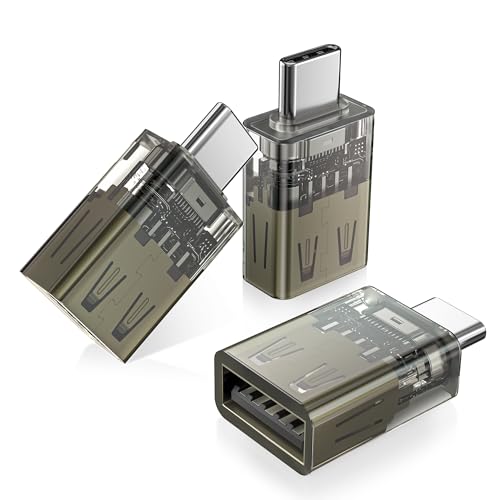
The Basesailor 3-pack USB-C to USB-A adapters provide a practical bridge for Mac and other USB-C devices, enabling the use of older USB-A peripherals and storage devices. The slim design minimizes port blockage, allowing multiple adapters to fit side by side on MacBooks and other USB-C laptops. With a 5Gbps data transfer rate, these adapters support fast file sharing for images and videos. While not a driver solution, they help maintain a smooth workflow when using various photo conversion or scanning devices that rely on USB-A connections. Note that this adapter does not carry video signals, so it should be paired with appropriate devices for display needs.
Mac users benefit from plug-and-play compatibility and the ability to connect multiple USB-A peripherals without removing existing ports. For photographers working with external drives, card readers, or printers, these adapters reduce port constraints and simplify on-the-go digitization and transfer tasks.
Prism Video Converter For Mac (Free)
Prism Video Converter by NCH Software is a free Mac download that supports converting a range of video formats, including WMV, MP4, AVI, MOV, MPG, VOB, and ASF, provided a DirectShow codec is available. It adds video effects such as watermarks, text overlays, filters, and rotation to your projects. The drag-and-drop interface and folder-based workflow help users quickly convert multiple files. For Mac users who primarily deal with video assets, Prism offers a practical entry point for format compatibility and basic editing tasks without investing in a full editor package. In larger workflows, Prism can complement more advanced editors and media managers by handling routine conversions before archival storage or distribution.
Prism’s strengths lie in its simplicity and broad format support, though more complex color grading or professional-level edits may require additional software. It’s a suitable option for educators, hobbyists, and small teams that need a lightweight tool to standardize video formats on macOS.
Buying Guide: Key Considerations For Choosing A Mac Photo Converter
- Format needs: Identify which image or video formats you frequently work with and ensure the software or device supports those formats, including RAW, JPEG, PNG, TIFF, and common video types.
- Editing vs. converting: Distinguish whether you need pure conversion or integrated editing features like cropping, resizing, watermarking, red-eye removal, or color adjustments. Some tools pair basic editing with conversion, others are strictly format shifters.
- Batch processing: If you manage large collections, batch processing can save time. Look for multi-file processing, presets, and queue management to handle thousands of files efficiently.
- Mac compatibility: Confirm compatibility with your macOS version and whether any drivers are required for scanners or capture devices. Consider 64-bit support and ongoing software updates.
- Hardware integration: For photo scanning and film digitization, assess scanning speed, resolution (dpi), feeder availability, and the ability to handle various print sizes. Standalone scanners can reduce computer load, while USB adapters expand peripheral options for Mac users.
- User experience: A clean interface, drag-and-drop support, and clear output controls improve productivity. Look for helpful features like built-in previews, simple watermarking, and straightforward export destinations.
- Budget vs. needs: Balance cost with required capabilities. Some tools are free or bundled with hardware, while others offer robust features at a higher price. Consider whether you need ongoing updates or lifetime licenses.
- Support and updates: Check vendor support quality, available tutorials, and the frequency of software updates. Regular updates help maintain compatibility with new macOS releases and codecs.
Choosing a Mac-compatible photo converter involves aligning format support, scanning or editing capabilities, and workflow efficiency with your archival or creative goals. Whether prioritizing rapid photo scanning, robust movie and image processing, or straightforward format conversion, the right tool can streamline digital preservation and sharing across devices and platforms.