For power users, students, and professionals who run multiple displays, a reliable display port adapter setup can boost productivity and streamline workflows. This article reviews five top options that support dual or triple monitor configurations, including 4K visuals, MST/ SST modes, and USB-C pass-through charging. Each selection is evaluated for compatibility with Windows, macOS limitations, and common laptop docks to help you choose the right solution for your workspace.
| Product | Key Benefit | Ports |
|---|---|---|
| Selore Docking Station Dual Monitor (3 Monitors, 4K) | Triple-display capability with 4K outputs | 2x HDMI, 1x DisplayPort, Ethernet, USB 3.0, PD 100W |
| SWITCHFLUX DisplayPort Splitter (3 Monitors) | MST hub for 3 DP monitors with 4K@60Hz | DP In, 3x DP Out, USB cable requirement |
| Selore USB C Docking Station (3 Monitors) | Three-monitor USB-C docking with 100W PD | Dual HDMI, DisplayPort, VGA, USB-A, USB-C PD |
| Loryi DisplayPort Splitter (2 Monitors) | 4K@60Hz MST splitter for two displays | 2x DP Out, 1x DP In |
| Aibilangose DisplayPort Splitter (Dual Monitors) | 4K@60Hz MST/MST+ extended/mirrored modes | 2x DP Out, USB-C power passthrough |
Note: Mac users may experience mirror-only output with some models. Always verify that your laptop’s DP or USB-C port supports video output and that your monitors and cables are rated for the chosen resolution and refresh rate. The following sections detail five highly capable options.
Selore & S-Global USB C Docking Station With 3 Monitors

The Selore docking station enables a laptop to extend into multiple displays with 2 HDMI ports, a DisplayPort, and a VGA option when needed. It includes 100W PD charging and USB 3.0 ports to support data transfers and peripheral connectivity. MacOS usage may mirror the second external monitor rather than extend it, depending on the machine. Its triple-display setup is designed for Windows environments, allowing users to efficiently manage tasks across several screens. The Gigabit Ethernet port provides a reliable wired network connection for reduced latency in professional environments.
SWITCHFLUX 3-Monitor DisplayPort Splitter

This DP splitter supports extending or mirroring from a single DisplayPort source to three DP monitors with 4K@60Hz output and audio synchronization. It is designed to be plug-and-play, requiring a micro USB power connection for optimum performance. Note that it is unidirectional and should not be used with docking stations or KVM switches. It’s suitable for users who want a straightforward MST solution to maximize desk space while maintaining high-resolution output across multiple displays.
Selore USB C Docking Station With Dual HDMI And DP
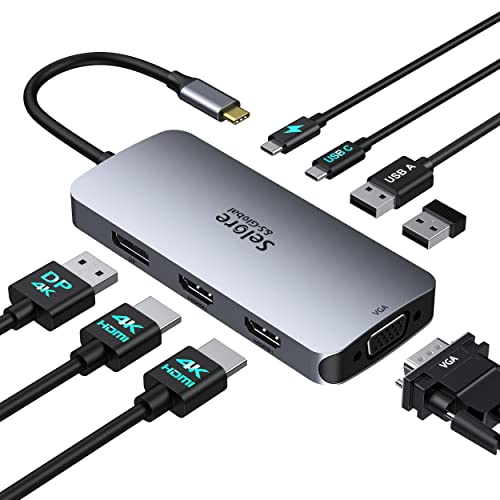
This USB-C hub supports up to three external displays via two HDMI ports and a DisplayPort, plus a VGA output for legacy monitors. It includes a 100W power delivery port for charging, and USB-A 2.0 ports for peripheral connectivity. The dock is designed for Windows devices, with macOS behavior typically limited to mirroring rather than extending. It aims to deliver flexible multi-monitor support in a compact form factor, suitable for a mixed monitor setup in home offices or business environments.
Loryi DisplayPort MST Splitter (Dual Monitors)

The Loryi device adds two DisplayPort outputs from a single DP source, enabling two 4K@60Hz displays when both monitors and cables support the resolution. It supports extended and mirror modes, making it adaptable for schools, conference rooms, or busy workstations. It is most effective when paired with a DP 1.4-capable source and high-quality DP cables to realize maximum 4K potential across both monitors. This splitter is suitable for users who require a straightforward two-monitor expansion with robust 4K support.
Aibilangose Dual Monitor DP Splitter

This 4K@60Hz MST splitter supports dual DP outputs and provides a USB-C power passthrough option, enabling pass-through charging where compatible. It supports multiple modes, including extended and mirrored displays, and is designed to work with compatible DP 1.2 or higher sources. It is best suited for users who want a compact MST hub that can deliver two high-resolution displays and maintain power delivery for connected devices.
Buying Guide: Key Purchase Considerations
- Device compatibility: Confirm that your laptop’s USB-C or DisplayPort supports video output (DP Alt Mode, Thunderbolt 3/4, or DP 1.4+). macOS behavior varies by model, so check whether extended mode is supported or if mirroring is the default.
- Display configuration: Decide between extended mode (separate content on each screen) and mirror mode (identical content). MST hubs enable multiple independent displays, while SST or mirror-only solutions are better for simple mirroring needs.
- Resolution and refresh rate: Ensure cables and monitors support the desired 4K at 60Hz, or higher when using multiple displays. Some adapters support 4K@60Hz on one or more ports, while others limit to lower refresh rates on certain outputs.
- Power delivery: If the dock supports USB-C PD charging, verify the charger’s wattage (commonly 60W–100W) and ensure it matches your laptop’s charging requirements to avoid power conflicts.
- Ports and future-proofing: Consider how many HDMI, DisplayPort, VGA, USB-A, and USB-C ports you need. Some units provide a mix of ports to accommodate legacy displays or external peripherals.
- Driver and software: Most MST splitters are plug-and-play, but some configurations may require driver updates or graphics driver adjustments to achieve stable 4K or multi-monitor output. Keep graphics drivers current for best results.
- Cable quality and versions: Use high-quality DisplayPort 1.4 or HDMI 2.0+/2.1 cables capable of supporting the chosen resolution and refresh rate. Incompatibilities often cause flicker, black screens, or reduced performance.
- Physical layout: Consider the desk space and how many devices you need to connect. Some docks are bulkier but offer more ports, while compact hubs may limit simultaneous outputs.
- Operating system limitations: Windows generally supports MST extensions, while macOS often mirrors or limits multi-monitor extension depending on hardware, drivers, and connector type. Plan accordingly for your setup.