Unlock extra storage by replacing your laptop’s optical drive with a 2nd HDD or SSD. This guide reviews five reliable caddies designed to fit 9.5mm or 12.7mm optical bays, enabling quick upgrades for popular brands like Dell, HP, Lenovo, and more. Each option below offers plug-and-play SATA compatibility and supports 2.5-inch drives to boost storage without sacrificing portability.
| Product | Brand | Drive Type | Drive Thickness |
|---|---|---|---|
| Padarsey Universal 12.7mm SATA to SATA | Pardarsey | HDD/SSD (2.5″, SATA) | 12.7mm |
| ThtRht Optical Drive to Hard Drive Caddy Bracket | ThtRht | HDD/SSD (2.5″, SATA) | 9.5mm |
| Highfine Universal 9.5mm SATA to SATA | HIGHFINE | HDD/SSD (2.5″, SATA) | 9.5mm |
| Padarsey Universal 9.5mm SATA to SATA | Pardarsey | HDD/SSD (2.5″, SATA) | 9.5mm |
| QUMOX Laptop 2nd HDD SSD DVD Bay Caddy | QUMOX | HDD/SSD (2.5″, SATA) | 12.7mm |
id=”Padarsey-12-7mm-Universal-DVD-Bay” class=”product-title”>
Padarsey Universal 12.7mm SATA to SATA 2nd Drive Caddy

Overview: This caddy enables adding a second drive by replacing the laptop’s optical drive. It accepts 2.5-inch SATA HDDs or SSDs and is compatible with a wide range of brands that use a 12.7mm high CD/DVD-ROM drive. Ideal for upgrading storage in many Dell, HP, Lenovo, and similar laptops without sacrificing bay integrity.
Key features: Supports 12.7mm optical bays, 2.5-inch SATA HDD/SSD, broad compatibility with major laptop brands, simple swap installation, helps expand storage for media libraries, backups, and workspace projects.
Considerations: Ensure your laptop’s original drive bay is designed for a 12.7mm optical module and that your BIOS supports a bootable configuration if you intend to run the system from the second drive.
id=”ThtRht-9-5mm-Optical-Drive-Caddy” class=”product-title”>
ThtRht Optical Drive to HDD Caddy Bracket

Overview: This universal 9.5mm bracket converts an optical drive bay into a hard drive/SSD slot. The enclosure supports SATA I/II/III and provides a compact solution for laptops that use a standard 9.5mm bay, enabling a straightforward swap to gain extra internal storage.
Key features: 13-pin SATA optical drive interface compatibility, standard 9.5mm form factor, supports SATA transmission standards up to 6 Gbps, compact tray dimensions (130 x 127 x 9.5mm), suitable for many Dell, HP, Lenovo, and other brands.
Considerations: Verify your laptop’s optical bay interface is compatible with the bracket and confirm that you do not rely on the optical drive for essential software or features that must stay in the primary drive.
id=”Highfine-Universal-9-5mm” class=”product-title”>
Highfine Universal 9.5mm SATA to SATA Caddy
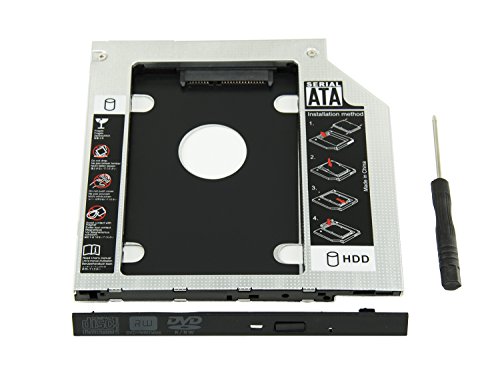
Overview: This popular option adds a second drive by replacing an optical drive and supports 2.5-inch drives up to 9.5mm in height. It is compatible with a broad set of laptops from major brands, making it a versatile choice for storage expansion on 9.5mm bays.
Key features: 100% brand-new build, 2.5-inch HDD/SSD compatibility, 9.5mm height (or thinner), straightforward installation, designed for widely used laptop models.
Considerations: Some systems may require BIOS adjustments for booting from the secondary drive; ensure the drive height aligns with the laptop’s bay depth to avoid fit issues.
id=”Padarsey-9-5mm-Universal” class=”product-title”>
Padarsey Universal 9.5mm SATA to SATA Caddy

Overview: Similar to other 9.5mm options, this Padarsey unit is designed to replace a CD/DVD-ROM with a second HDD/SSD. It supports 2.5-inch drives with a height of 9.5mm or thinner and is compatible with several major laptop brands that use standard optical bays.
Key features: 9.5mm compatible, supports SATA HDD/SSD, plug-and-play installation, broad brand compatibility, compact design suitable for portable laptops.
Considerations: Confirm the optical bay connector type matches your laptop’s drive interface and verify drive height limitations before purchasing.
id=”QUMOX-12-7mm-DVD-Bay” class=”product-title”>
QUMOX Laptop 2nd HDD SSD DVD Bay Caddy (12.7mm)

Overview: This QUMOX bay supports 2.5-inch HDDs/SSDs in a 12.7mm thick optical bay. It offers plug-and-play functionality and enables hot-swapping for quick storage upgrades in many laptops that use a larger DVD drive slot.
Key features: 12.7mm thickness, SATA to SATA interface, easy installation, supports hot swap, compatible with a wide range of laptop models that rely on a DVD drive.
Considerations: Ensure your BIOS supports booting from the secondary drive if you plan to run the system primarily from the caddy-equipped drive; verify the drive height and bay fit for your specific model.
Buying Guide: Key Considerations for DVD Bay Caddies
Storage expansion needs vary by user. When choosing a DVD bay caddy, consider these factors to maximize compatibility and performance.
- Drive thickness compatibility: 9.5mm and 12.7mm bays are common; confirm your laptop’s optical drive height before purchasing. Some laptops require a specific thickness to fit correctly.
- Brand and model compatibility: While many caddies cover broad laptop families, ensure your brand and model appear in the compatibility notes or forums. This reduces the risk of fit issues or BIOS conflicts.
- Performance considerations: SATA I/II/III compatibility matters for speed. A caddy that supports up to 6 Gbps will maximize SSD performance, especially for workloads like media editing and large file transfers.
- Drive type and height: Most caddies support standard 2.5-inch HDDs/SSDs. Some designs restrict height; verify your drive’s thickness to avoid seating problems.
- BIOS and boot options: Some laptops won’t boot from a secondary drive without BIOS changes. If you plan to boot from the second drive, check whether the BIOS allows booting from an optical bay substitute.
- Installation ease: Look for tool-free assemblies or simple screw-based mounting. A secure tray prevents drive vibration and reduces wear over time.
- Cooling considerations: Additional drives can generate extra heat. Ensure there is adequate airflow or consider an enclosure with built-in ventilation if you plan heavy use.
- Backup strategy: Use the added drive for backups, scratch space, or media libraries if you don’t need constant OS boot from the second drive.