Choosing the right cable to connect your monitor to a computer can impact both image quality and setup simplicity. Whether you’re upgrading a workstation, setting up a home entertainment PC, or preparing for a presentation, the following cables cover HDMI, VGA, and DisplayPort to VGA connections. This guide highlights five compatible options, explains key features, and helps you pick the best fit for your hardware and use case.
Product Overview
- BENFEI HDMI to VGA 3 Feet Cable — Uni-Directional HDMI (Source) to VGA (Display) Cable (Male to Male)
- BENFEI HDMI to VGA 6 Feet Cable — Uni-Directional HDMI Computer to VGA Monitor Cable (Male to Male)
- EKYLIN VGA Cable, 1.5m/5Feet — Male to Male Video Extension Cable for Computer to Monitor/Projector
- AVACON 4K DisplayPort to HDMI 6 Feet Cable — Uni-Directional DP to HDMI Cable for Computer to Monitor/TV
- ENUODA Blue VGA Cable 15 Pin Male to Male — 4.9 Feet for PC to Monitor/Projector
Selected products focus on straightforward compatibility (HDMI-to-VGA, DP-to-VGA, or pure VGA extension), stable signal conversion, and durable construction suitable for home, office, or classroom use. The table above highlights the key options at a glance for quick decision making.
BENFEI HDMI to VGA 3 Feet Cable
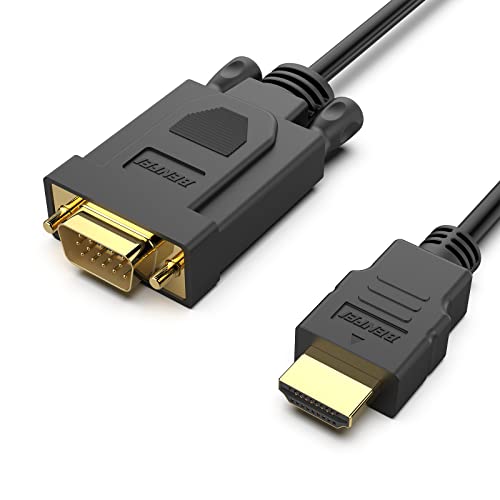
The BENFEI HDMI to VGA 3 Feet Cable provides a compact, portable solution to connect a computer with an HDMI output to a VGA-equipped display. Its compact design allows easy packing for business presentations or on-the-go setups. The cable includes a built-in IC chip that converts the HDMI digital signal to a VGA analog signal, delivering a stable, single-direction signal path from HDMI source to VGA display. It supports resolutions up to 1920×1080 at 60Hz, including 1080p, 720p, and common WUXGA formats, making it suitable for projectors, TVs, and external displays. The HDMI connector is gold-plated to resist corrosion and improve signal transmission, and the molded strain relief adds durability for regular use. Note that this is not a bidirectional converter; it cannot convert VGA input back to HDMI output.
Key features:
– Compact, portable design for travel and presentations
– HDMI (source) to VGA (display) single-direction conversion
– Supports up to 1080p Full HD (1920×1080@60Hz)
– Gold-plated HDMI connector and durable construction
Ideal use cases: Plugging a laptop into a VGA projector, extending a desktop to a VGA monitor, or delivering a quick display upgrade without changing existing displays.
BENFEI HDMI to VGA 6 Feet Cable

This longer BENFEI HDMI to VGA cable mirrors the 3-foot version with added reach, making it suitable for desks where the computer is farther from the display. It uses the same uni-directional HDMI-to-VGA conversion and a robust design intended to endure daily use in office or classroom settings. The 6-foot length provides flexibility for layouts that place a display across a room or at the edge of a conference table. Like the shorter version, it supports up to 1080p (1920×1080@60Hz) and features a gold-plated HDMI connector and molded strain relief for durability. Remember, it’s not capable of VGA-to-HDMI conversion.
Key features:
– Extended 6-foot cable length for flexible room setups
– Uni-directional HDMI (Source) to VGA (Display) conversion
– Supports 1080p and common VGA resolutions
– Durable connectors with strain relief
Best suited for: Conference rooms, classrooms, and home theaters where the HDMI source must reach a VGA projector or monitor without compromising image quality.
EKYLIN VGA Cable, 1.5m/5Feet

The EKYLIN VGA Cable is a straightforward VGA extension cable designed to connect a computer with a VGA port to a monitor or projector with a VGA input. It’s a passive cable (no signal conversion required) and supports high resolutions up to 1920×1200 (WUXGA), 1080p, 1600×1200, and 1024×768. The cable is built with molded strain relief connectors for durability and grip treads for easy plugging and unplugging, along with a sturdy build to reduce wear at the connector ends. It’s ideal when both devices already have VGA ports and you simply need a reliable cable to bridge them.
Key features:
– High-resolution VGA support up to 1920×1200
– Molded connectors and grip-friendly design
– Durable construction for frequent connections
Use cases: Desktop setups with older displays, educational displays, or simple VGA-to-VGA connections where digital-to-analog conversion is not required.
AVACON 4K DisplayPort to HDMI 6 Feet Cable
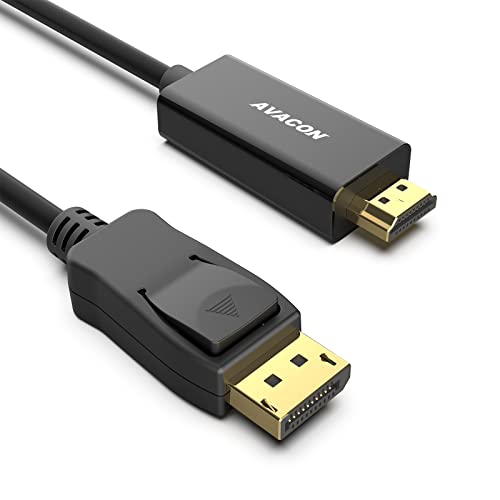
The AVACON DP to HDMI cable is a uni-directional DisplayPort (DP) to HDMI cable ideal for computers with DP outputs that need to drive an HDMI display, such as a monitor or HDTV. The 6-foot length provides flexibility for seating arrangements and media rooms. It supports video resolutions up to 3840×2160 at 30Hz, and 1080p at 60Hz, with audio passthrough for compatible devices. It is important to note that this is not a bidirectional adapter and cannot convert HDMI sources back to DisplayPort monitors. The cable design emphasizes stability, with a noted focus on maintaining signal integrity and clear display output through DP to HDMI.
Key features:
– DP to HDMI single-direction connection
– Supports 4K at 30Hz and 1080p at 60Hz
– Audio passthrough for compatible devices
– Durable build with a focus on signal stability
Best uses: Connecting a computer with a DisplayPort output to an HDMI-equipped monitor, TV, or projector, particularly in setups requiring high-quality video output from DP to HDMI without additional adapters.
ENUODA Blue VGA Cable 15 Pin Male to Male

The ENUODA VGA Cable is a classic VGA extension option designed for PC-to-monitor connections. It features a bright blue, 15-pin male-to-male design, suitable for setups where VGA is the primary video interface. The cable supports standard VGA resolutions and is built to be compatible with most VGA-enabled displays and computers. External connectors include grip-friendly ends and a robust sheath for everyday use, making it a dependable choice for extended desktop configurations, presentations, or classroom setups where a straightforward VGA link is required.
Key features:
– 15-pin VGA male-to-male connection
– Durable build with ergonomic grip
– Suitable for displays and projectors with VGA inputs
Recommended use: Simple VGA-to-VGA connections where devices share a compatible 15-pin VGA interface, and no digital-to-analog conversion is needed.
Buying Guide: Choosing The Right Cable For Monitor To Computer
When selecting a cable to connect a monitor to a computer, consider the following factors to ensure compatibility and a reliable display:
- Device outputs and inputs: Verify whether your computer has HDMI, DisplayPort, or VGA outputs and whether your monitor supports HDMI, VGA, or both. If you’re connecting to an old display, a VGA option may be necessary; for newer devices, HDMI or DP to HDMI can maximize quality.
- Signal direction: HDMI-to-VGA and DP-to-VGA cables contain built-in converters that translate digital signals to analog. Ensure you choose a uni-directional cable (source to display) when you don’t need reverse conversion.
- Resolution support: Check the cable’s maximum resolution and refresh rate. For most office or home tasks, 1080p (1920×1080) at 60Hz is sufficient, while some DP-to-HDMI cables may support 4K at lower refresh rates.
- Long-term durability: Look for molded strain relief, gold-plated connectors, and robust shielding if you frequently plug and unplug or transport cables.
- Length requirements: Choose a length that provides enough reach without excess slack. Longer cables may introduce minor signal degradation in some setups, particularly with older standards, so opt for the shortest length that fits your space.
- Color and labeling: In multi-monitor setups, color-coded or clearly labeled cables can simplify installation and troubleshooting.
- Compatibility notes: Some adapters are not bidirectional. Confirm whether you need a converter (HDMI to VGA, DP to VGA) or a passive cable (VGA to VGA) to avoid compatibility issues.
Summary of practical choices for common setups:
– HDMI source to VGA display: Use an HDMI-to-VGA active adapter/cable with a dedicated signal converter.
– DisplayPort source to VGA display: Use a DP-to-VGA active adapter if the monitor only accepts VGA.
– VGA to VGA: A straightforward VGA cable suffices when both devices support VGA without any conversion.
Regardless of which option you select, ensure the adapter or cable matches your device’s ports and intended use, whether for work presentations, multimedia playback, or daily computer-to-display connections.